

Laptop Won’t Turn On?
Step-by-Step Diagnosis Guide
A laptop that refuses to power on can look like a total disaster. Sometimes it is nothing more than a charger problem. Sometimes the screen is dead while the machine is still running. Sometimes the issue is deeper. This guide helps you diagnose the real cause in the right order, with calm logic instead of panic.
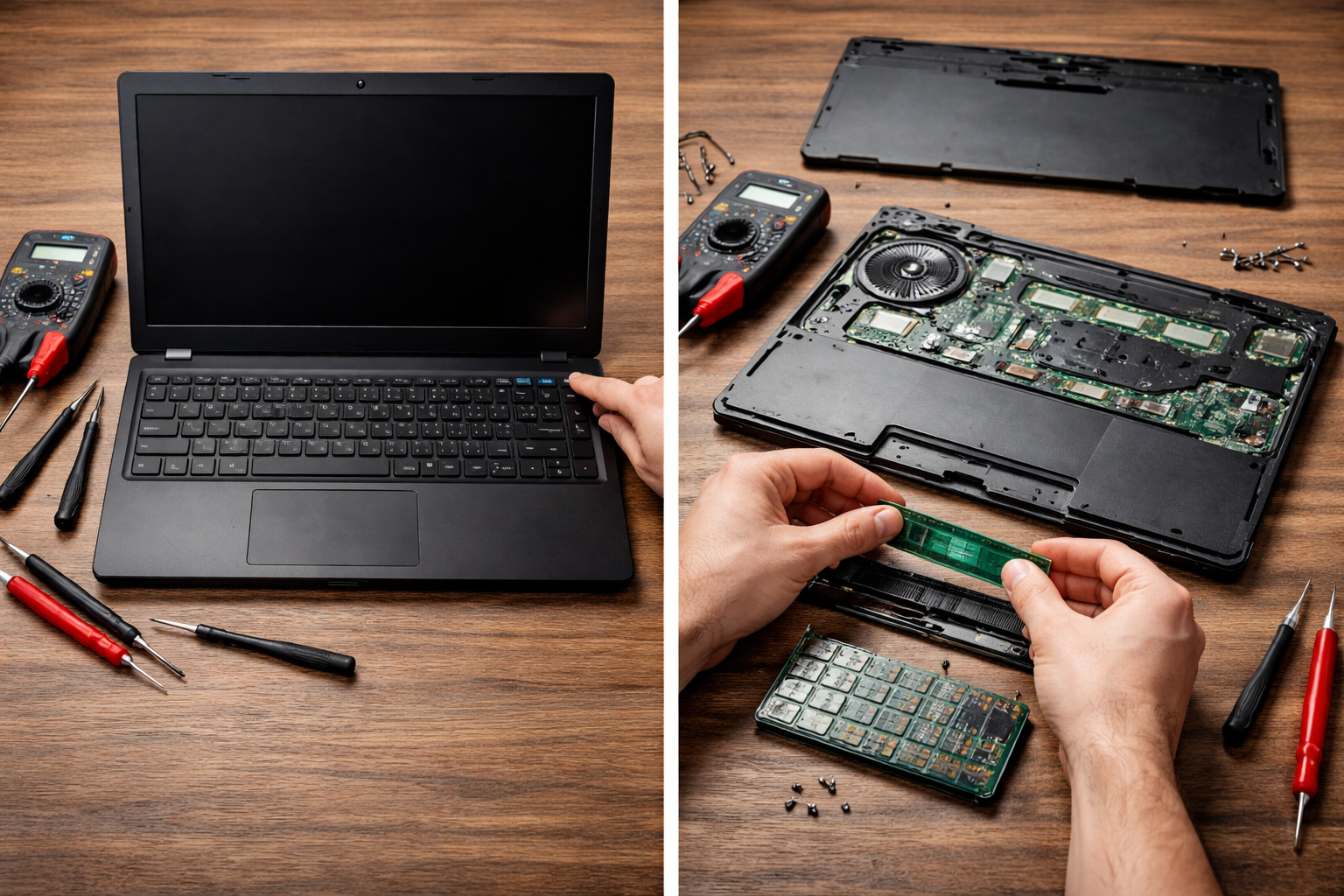
Direct Answer — Featured Snippet
If your laptop won’t turn on, start by checking the charger, power outlet, battery status, and power button response. Then look for signs of life such as LEDs, fan noise, keyboard backlight, or beep codes. A laptop that seems dead may actually have a screen issue, RAM problem, battery failure, or power circuit fault. The right diagnosis begins with simple external checks before opening the device.
When a Laptop Won’t Turn On, the Fear Comes Before the Facts
A phone dying is stressful. A laptop refusing to turn on feels even heavier. That machine may hold your work files, your browser sessions, your school projects, your client documents, your passwords, your editing tools, and weeks or even years of your life. So when you press the power button and nothing happens, the mind jumps instantly to the worst-case scenario: motherboard failure, lost files, expensive repair, total replacement.
But that emotional reaction can distort diagnosis. People assume “it won’t turn on” means one single problem. In reality, that phrase hides several very different situations. Sometimes the laptop is completely dead. Sometimes it powers on but nothing shows on screen. Sometimes the battery is empty and the charger is failing. Sometimes the machine starts for one second and shuts down. Sometimes RAM prevents proper startup. Sometimes it is a display problem pretending to be a power problem.
That distinction matters. A laptop that will not turn on is not a diagnosis. It is only the starting symptom. The goal is to move from confusion to categories. Once you know which category you are facing, the next step becomes much clearer.
Core Principle
Never treat “won’t turn on” as one problem. First decide whether the laptop is truly dead, partially alive, or running without display. That single distinction can save hours of wrong troubleshooting.
What People Really Want When They Search “Laptop Won’t Turn On”
This search is informational on the surface, but practically it is an urgent rescue query. The user is not browsing for general knowledge. They want answers to four immediate questions: Is the laptop actually broken? Can I fix it myself? Is my data still safe? And how do I avoid paying for the wrong repair?
That is why shallow articles on this topic fail so often. Many guides jump too quickly into advanced repair ideas or vague generic advice. They say “check the battery” without explaining how. They say “inspect the hardware” as if every reader should disassemble a laptop at random. They rarely define the symptoms precisely enough to separate screen issues from motherboard issues, or power problems from memory failures.
A better guide has to do more than list tips. It needs to create a decision path. That means recognizing visible signs, listening for clues, isolating components, and moving from safest external checks to deeper technical possibilities only when necessary.
Before You Begin: Identify Which “Won’t Turn On” Situation You Actually Have
One of the biggest mistakes in laptop troubleshooting is using the wrong definition of “dead.” Before you do anything else, press the power button once and observe carefully.
- Case A — Completely dead: no lights, no fan noise, no keyboard light, no screen reaction.
- Case B — Some signs of life: charging light, power LED, fan spin, or beep, but no display.
- Case C — Starts briefly then shuts off: power comes on for a moment, then disappears.
- Case D — Running but black screen: fan noise or caps lock light reacts, but screen stays dark.
These are not small differences. They point toward different parts of the machine. Case A often begins with power delivery. Case B often suggests display, memory, or boot-related issues. Case C can indicate short circuits, thermal protection, or hardware instability. Case D often sends people toward the battery when the real issue may be the screen or RAM.
Table of Contents
- Step 1 — Check the charger and power source
- Step 2 — Look for signs of life
- Step 3 — Rule out a dead or unstable battery
- Step 4 — Test whether the screen is the real problem
- Step 5 — Perform a power reset
- Step 6 — Check RAM and removable hardware
- Step 7 — Know when it points to motherboard failure
- FAQ
Why Most Laptop Power Guides Miss the Real Problem
Many top-ranking articles focus too narrowly on one idea: battery. That is understandable, because batteries are common failure points. But it is incomplete. A laptop is a chain of systems: charger, DC jack or USB-C power circuit, battery, motherboard power rails, RAM, storage, display, and firmware behavior. When one layer fails, the whole machine can appear dead.
Here is what most people miss: sometimes the laptop is not failing to power on. Sometimes it is powering on and failing to show you that it did. An internal display issue, a stuck RAM state, or even a corrupted startup state can make the machine look lifeless when it is not. That is why observation matters more than assumptions.
Step 1 — Check the Charger, Power Source, and Basic External Power Path
Start outside the laptop, not inside it. External power failures are among the most common and most overlooked causes of a laptop that appears dead. Users often blame the device first because that is the object they can see. But the charger, cable, wall outlet, power strip, or USB-C power brick may be the real problem.
Look for fraying, cuts, twisted cable sections, bent connectors, burn marks, or a loose charging tip. A charger can fail without dramatic damage, but visible wear increases suspicion immediately.
Action: examine both the cable and the brick, especially near stress points.
A dead extension strip, overloaded socket, or loose power contact can mimic a laptop failure. Plug the charger into a known working wall outlet directly.
Action: remove any extension strip or adapter from the test path.
If you have access to another official or compatible charger with the correct wattage, test it. This is one of the fastest ways to separate laptop fault from charger fault.
Action: match the correct voltage and connector type before testing.
For USB-C laptops, charger mismatch is especially important. Some machines need higher wattage and will behave strangely or fail to charge properly with weak adapters. A phone charger may physically connect to the port but still be insufficient to power the laptop.
Step 2 — Look for Signs of Life Before You Declare It Dead
This is where careful observation changes everything. Press the power button once, then pause and watch. Do not press it repeatedly at random. Look and listen.
Things to check immediately
- Does the charging LED come on when plugged in?
- Does the power LED light up when you press the button?
- Do the fans spin, even briefly?
- Does the keyboard backlight flash?
- Do you hear any beep codes?
- Does Caps Lock or Num Lock respond after a few seconds?
These clues matter because they separate a power delivery issue from a boot issue or a display issue. If LEDs or fan activity exist, the laptop may not be fully dead. If there is absolute silence and no LEDs, power input becomes the main suspect. If it starts then stops, hardware instability becomes more likely.
Step 3 — Rule Out a Dead, Failing, or Unstable Battery
Laptop batteries fail in different ways. Some simply stop holding charge. Others trigger unstable power behavior. Some swell. Some allow charging lights but not actual boot stability. If your battery is deeply discharged and the charger is weak or failing, the laptop may appear completely dead.
If your battery is removable
Shut down the machine fully. Disconnect the charger. Remove the battery. Then reconnect the charger and try to power on using charger power only. If the laptop starts this way, the battery becomes a major suspect.
If your battery is internal
You may not want to open the machine yet, and that is fine. For now, let the charger remain connected for a while, especially if the battery may be deeply drained. Some laptops need a few minutes before they show any signs of life after a full discharge.
Be careful with battery symptoms. A battery problem does not always mean the laptop cannot power on. Sometimes the machine works normally on charger power alone. Other times, a failing battery destabilizes startup.
Step 4 — Make Sure It’s Not a Screen Problem Pretending to Be a Power Problem
This is one of the most common misdiagnoses. The laptop “won’t turn on,” but the machine is actually running. The only failure is the display path. That can mean a dead internal screen, broken backlight, loose display cable, graphics output issue, or brightness state problem.
How to test that quickly
- Listen for fan noise or startup sounds.
- Watch whether keyboard lights activate.
- Shine a flashlight at the screen from an angle to look for a faint image.
- Connect the laptop to an external monitor or TV.
- Use the display output key combination if your model supports it.
If the external monitor shows an image, your laptop is not dead in the way you feared. It is a display issue, not a full startup failure. That changes the repair path completely.
Here is what many people miss: a black screen can feel emotionally identical to a dead motherboard. But technically, these are very different categories. One threatens the entire machine. The other may be isolated to display hardware.
Step 5 — Perform a Proper Power Reset
Laptops can enter strange power states. Static charge, frozen firmware states, or failed sleep/wake transitions sometimes leave the machine unresponsive even though the hardware is not permanently damaged. A power reset is a simple but important diagnostic step.
Basic power reset procedure
- Disconnect the charger.
- If removable, remove the battery.
- Hold the power button for 20 to 30 seconds.
- Reconnect power only.
- Try starting the laptop again.
This drains residual power and can clear stubborn startup states. It is not a miracle fix, but it often works on systems that got stuck after crashes, sleep issues, battery anomalies, or peripheral confusion.
If the laptop reacts differently after the reset — even if it still fails — that change itself is useful information. Troubleshooting is often about movement, not immediate perfection.
Step 6 — Check RAM, Storage, and External Devices Before Assuming Motherboard Failure
Once external power and basic display checks are done, memory becomes an important suspect. Bad or poorly seated RAM can prevent a laptop from booting properly. In some systems, you may get lights or fan activity but no display. In others, the laptop starts and shuts down instantly or gives beep codes.
What to remove first
- USB drives
- External hard drives
- Docking stations
- Memory cards
- Peripherals that may confuse the startup process
If you are comfortable opening the laptop and your model allows easy access, you can also reseat removable RAM. That means removing it and placing it back carefully. On laptops with two RAM sticks, testing one stick at a time can help isolate a bad module.
Storage can also matter, but less often for the exact “won’t turn on” symptom. A failed SSD usually affects booting into the system rather than creating total power silence. RAM, by contrast, can stop the machine from producing useful output at all.
Step 7 — Know the Signs That Point Toward Motherboard or Power Circuit Failure
This is the stage people fear most, and it does deserve caution. If you have tested the charger, outlet, battery behavior, display path, reset procedure, and removable components, yet the machine still shows no meaningful response, internal board-level failure becomes more likely.
Clues that suggest deeper board issues
- No charging LED even with known good charger
- No fan spin, no light, no reaction after power reset
- Visible burning smell or signs of liquid damage
- Power comes on for a second, then dies repeatedly
- Device stopped working after surge, liquid contact, or fall
That does not automatically mean the entire laptop is beyond saving. In some cases the issue may be the DC jack, charging daughterboard, or a localized power circuit rather than full motherboard death. But at this point, board-level diagnosis often requires tools and skills beyond normal home troubleshooting.
Repair Reality
The goal of good DIY diagnosis is not to become a motherboard technician overnight. The goal is to reach the repair stage with clarity: what you ruled out, what symptoms remain, and which category the failure most likely belongs to.
Quick Diagnosis Table: Symptom, Meaning, and Best First Move
| What You Notice | Most Likely Meaning | Best First Move |
|---|---|---|
| No light, no fan, no response | Charger, power input, or board power issue | Test charger, outlet, and perform power reset |
| Charging light on, but no startup | Battery, RAM, or boot/display problem | Check signs of life and test external display |
| Fan spins briefly then stops | Hardware instability, RAM issue, or board fault | Disconnect peripherals and reseat RAM if possible |
| Keyboard lights up, screen stays black | Display issue or memory startup issue | Connect external monitor and test display output |
| Works only on charger, not on battery | Battery failure or charging problem | Test with charger power only and inspect battery health |
| Stopped after liquid spill or surge | Internal damage likely | Stop forcing startup and seek inspection |
The Biggest Mistakes People Make With a Dead Laptop
Pressing the power button over and over
Repeating the same action without changing any condition gives you very little new information. It mostly increases frustration. Press once, observe, then test logically.
Assuming black screen means total death
A running laptop with no display can easily be mistaken for a dead machine. That wrong assumption sends people toward expensive conclusions too early.
Using the wrong charger
Similar connectors do not always mean compatible power. This is especially important with USB-C power delivery, where wattage matters.
Ignoring liquid exposure because “it was only a little”
Small spills still matter. A tiny amount of moisture in the wrong place can destabilize startup or damage the board over time.
Opening the laptop too early
Many issues can be diagnosed from outside first. If you open the device before ruling out simple causes, you create more risk without more clarity.
What “Signs of Life” Can Tell You About the Real Fault
Troubleshooting gets easier once you stop asking, “Is it dead?” and start asking, “What part of the startup chain is still alive?” That is a more powerful question. LEDs mean some power is arriving. Fan spin means at least part of the board wakes up. Beeps can point to memory or startup faults. External monitor output can prove the system is booting even if the screen is dark.
In repair logic, partial behavior is valuable. A laptop that does absolutely nothing is one category. A laptop that does something inconsistent is another. In many real cases, the laptop is not fully dead. It is stuck between power and output, or between initialization and boot.
When Your Data Is Probably Safe Even If the Laptop Won’t Turn On
One of the quiet fears behind this problem is data loss. The good news is that a laptop failing to power on does not automatically mean your files are gone. In many cases, the storage drive is fine even when the laptop itself refuses to start.
If the real fault is the charger, battery, screen, RAM, or power circuit, the SSD or hard drive may still be completely intact. That is important because it means the emotional disaster people imagine is often larger than the actual technical damage.
This should not make you careless. It should make you calmer. Good diagnosis helps not only with repair cost, but also with preserving trust in what may still be recoverable.
Practical Takeaways: What To Do Right Now
- Separate “completely dead” from “running with no display” before anything else.
- Test the charger, outlet, and external power path first.
- Look for signs of life: LEDs, fans, keyboard light, or beep codes.
- Rule out battery instability by testing charger-only behavior when possible.
- Check whether the screen is the real problem by using an external display.
- Perform a proper power reset before assuming serious failure.
- Disconnect peripherals and consider RAM as a suspect if there is partial startup.
- If all basics fail and there is still no response, internal board-level repair becomes more likely.
Frequently Asked Questions
Why won’t my laptop turn on even when it’s plugged in?
How do I know if it’s the charger or the laptop?
My laptop fan runs, but the screen stays black. Is it dead?
Can bad RAM stop a laptop from turning on?
Should I remove the battery if the laptop won’t turn on?
Does a laptop that won’t turn on mean my files are lost?
When should I stop troubleshooting and get professional repair help?
Internal Linking Opportunities for ByteFix Lab
These three articles connect naturally with this guide and strengthen your repair content structure:
A Deeper Truth: Why Laptop Failure Feels So Personal
A laptop that will not turn on is not only a technical interruption. It also exposes how much modern work, memory, and identity have been compressed into a single machine. The object on the desk is no longer just hardware. It is continuity. When it goes dark, what disappears for a moment is not merely a screen. It is access to unfinished thoughts, obligations, and proof of competence.
That is why people panic early and diagnose poorly. The emotional cost of uncertainty is high. And yet this is precisely when method matters most. Technology becomes most intimidating when it is opaque. The answer is not magical thinking. It is structure: power first, then signs of life, then battery, then display, then memory, then deeper hardware.
There is also a broader lesson here. Modern devices promise seamless convenience, but under the surface they remain assemblies of vulnerable systems: connectors, cells, rails, firmware states, and boards. We depend on them as if they were stable by nature. In reality, they are stable only when everything in the chain behaves.
In the end, the real question is not only “Why won’t my laptop turn on?”
The deeper question is: how much of our daily confidence rests on machines we understand only when they fail?