
Complete Security Guide
How to Protect Your Phone from Hackers (Complete Guide 2026)
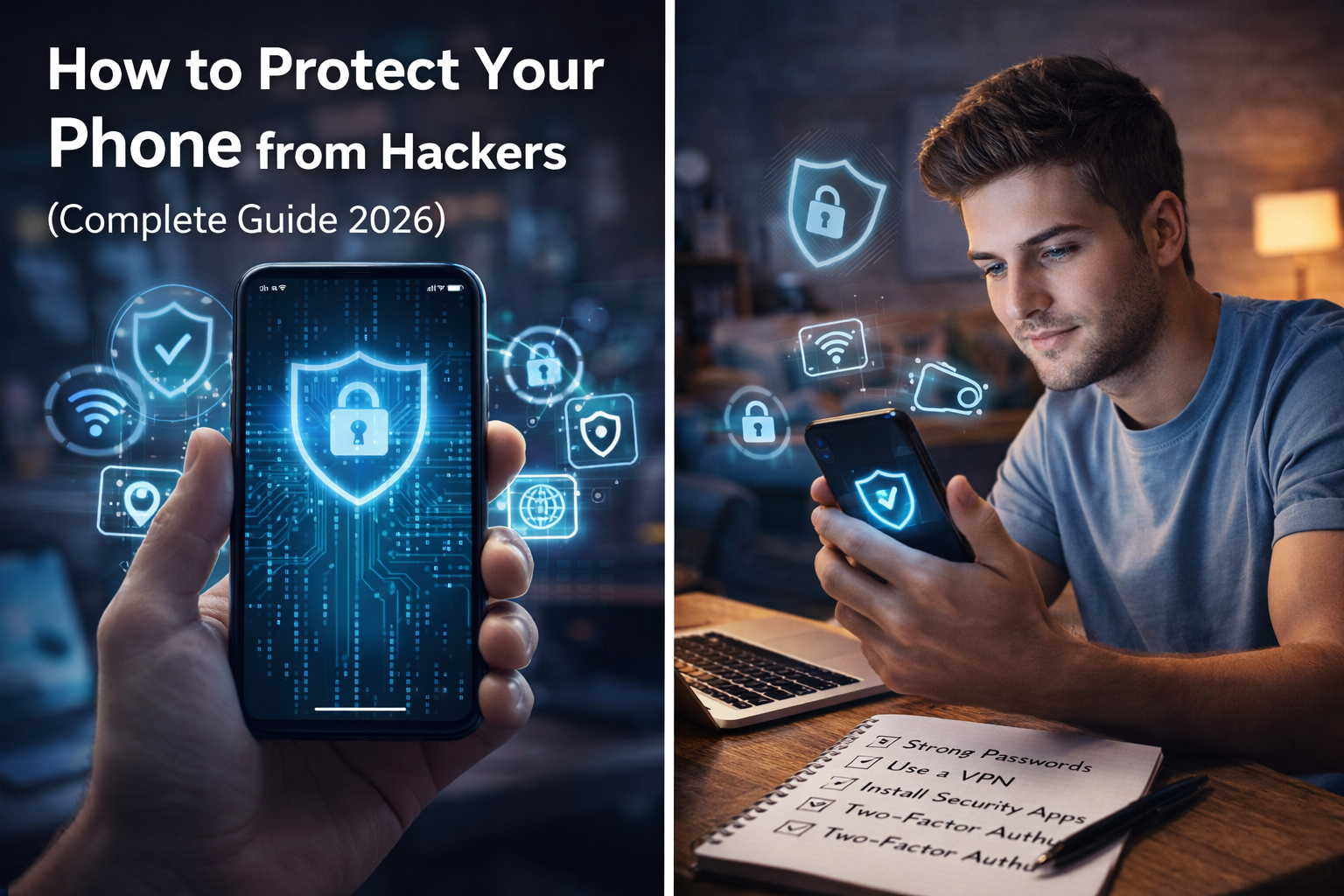
Knowing the warning signs of a hack is only half the battle. The real protection comes from building habits and settings that make your phone extremely difficult to compromise in the first place. This complete guide walks you through every critical layer of smartphone security — from your lock screen to your Wi-Fi behavior — in plain, actionable language.
What This Guide Covers
A complete, step-by-step breakdown of how to protect your iPhone or Android smartphone from hackers, spyware, and data theft in 2026. Covers lock screen security, two-factor authentication, app permissions, VPN usage, public Wi-Fi risks, software updates, SIM protection, and a full security audit checklist you can use right now.
Why Phone Security Matters More Than Ever
Your smartphone is the most intimate computer you own. It holds your banking apps, your email, your two-factor authentication codes, your location history, your private photos, your medical apps, and often your work documents. If a hacker gains access, they do not just see your data — they can impersonate you, drain your accounts, and lock you out of your own digital life.
The scale of mobile threats has exploded. In 2025, mobile malware attacks increased by over 50% year-on-year. Phishing attacks via SMS — known as smishing — now account for a significant share of all credential theft. And with AI-generated phishing messages becoming indistinguishable from legitimate communications, the human barrier of « I would notice something suspicious » is rapidly eroding.
The good news: the vast majority of successful phone hacks are entirely preventable with basic, consistent security hygiene. You do not need to be a security expert. You need the right habits and the right settings — both of which this guide will give you.
If you have not already read Is Your Phone Being Hacked? 7 Warning Signs You Must Know, read that first to understand what a compromise looks like — then come back here to make sure it never happens to you.
10 Essential Steps to Protect Your Phone from Hackers
These steps are ordered from most to least impactful. If you only have time for the first three today, start there — you will already be significantly more protected than the average user.
Set a Strong Lock Screen — Your First and Most Important Line of Defense
Your lock screen is the physical gate between an attacker and everything on your phone. A weak PIN or pattern lock can be cracked in minutes. A strong alphanumeric passcode combined with biometric authentication is your most immediately effective protection.
-
Use a 6-digit PIN minimum — ideally an alphanumeric passphrase A 4-digit PIN has only 10,000 combinations. A 6-digit PIN has 1 million. An 8-character alphanumeric passphrase has trillions. The more complex, the better — and you only need to type it when Face ID or fingerprint fails.
-
Enable Face ID or Fingerprint as primary unlock Biometrics are both more convenient and more secure than typing a PIN in public where your code can be observed over your shoulder.
-
Set auto-lock to 30 seconds or 1 minute Every second your unlocked phone sits idle on a table is a second of exposure. Shorter auto-lock dramatically reduces your physical vulnerability.
-
Never use pattern locks Pattern locks leave visible smudge trails on your screen that reveal the pattern to anyone who tilts the phone under light.
iPhone
- Settings → Face ID & Passcode
- Tap Change Passcode
- Choose Custom Alphanumeric Code
Android
- Settings → Security → Screen Lock
- Select Password (not PIN or Pattern)
- Set a strong alphanumeric passphrase
Enable Two-Factor Authentication (2FA) on Every Critical Account
Two-factor authentication is the single most effective account protection measure available to ordinary users. Even if a hacker steals your password — through a data breach, phishing, or keylogging — they cannot access your account without the second factor.
Critical: use an authenticator app, not SMS. SMS-based 2FA is vulnerable to SIM swapping attacks where hackers convince your carrier to redirect your number to their SIM. Authenticator apps generate codes locally on your device and are immune to this attack.
-
Install a reputable authenticator app Google Authenticator, Authy, or Microsoft Authenticator are all solid choices. Authy has the advantage of encrypted cloud backup so you do not lose codes if you change phones.
-
Enable 2FA on these accounts first — in this order Your primary email, banking and financial apps, social media, your Apple ID or Google account, and any account linked to your payment methods.
-
Save your backup codes securely When enabling 2FA, every service gives you one-time backup codes. Print them or save them in a password manager — these are your only way in if you lose your authenticator device.
Never use SMS 2FA if an authenticator app option is available. SMS is better than nothing, but authenticator apps are dramatically more secure. Upgrade any account that still uses SMS-only 2FA as soon as a TOTP option becomes available.
Keep Your Operating System and All Apps Updated
The majority of successful phone hacks exploit known vulnerabilities that already have patches available — the user simply has not installed the update. Keeping your OS and apps current is the single easiest and most overlooked security measure available.
Every system update is a security update. When Apple or Google release a patch, they simultaneously publish information about what was fixed — which tells hackers exactly where the holes are in older versions. Every day you delay updating is a day you are running a device with a published, known vulnerability.
-
Enable automatic OS updates Set your phone to update automatically overnight when charging. You should never be more than 24–48 hours behind a security patch.
-
Enable automatic app updates Apps also receive security patches. Outdated apps — especially browsers, messaging apps, and banking apps — are common attack surfaces.
-
Delete apps you no longer use Every installed app is an attack surface. Apps you do not use are apps you are not monitoring for permission abuse or updates. If you have not opened it in 3 months, uninstall it.
iPhone
- Settings → General → Software Update
- Enable Automatic Updates → toggle all options on
- App Store → Profile icon → enable App Updates
Android
- Settings → Software Update → Auto Download
- Play Store → Profile → Settings → Auto-update apps
- Set to update Over any network or Wi-Fi only
Audit and Lock Down App Permissions
App permissions are the access cards you hand to every app you install. Many apps request far more access than they need to function — and some use that excess access to harvest and sell your data, or to provide backdoor access to malicious actors. Reviewing your permissions is one of the most revealing security exercises you can do.
-
Revoke camera and microphone access from non-essential apps Only video call apps, camera apps, and voice recorder apps legitimately need these. A flashlight app, a game, or a shopping app has no business accessing your camera or microphone.
-
Set location to « While Using App » — never « Always » Very few apps need your location in the background. Set all non-navigation apps to location access only while actively using the app. This both protects privacy and saves battery.
-
Revoke contacts access from apps that do not need it Your contacts list is a goldmine for data brokers and marketers. Only communication apps (messaging, phone, email) need contact access.
-
Disable background app refresh for non-essential apps This stops apps from running silently in the background when you are not using them, reducing both data leakage and battery drain.
iPhone
- Settings → Privacy & Security
- Tap each permission type (Camera, Microphone, Location…)
- Review every app listed and revoke unnecessary access
Android
- Settings → Privacy → Permission Manager
- Review each permission category
- Android 12+: check Privacy Dashboard for access history
ByteFix Lab Tip: Go through permissions once a month. New app updates often silently request additional permissions. If an app asks for a new permission that does not make sense for its function, deny it — or uninstall the app entirely.
Use a VPN on Public Wi-Fi — Every Single Time
Public Wi-Fi networks — in cafes, airports, hotels, and malls — are fundamentally insecure. They are prime hunting grounds for man-in-the-middle attacks, where a hacker positions themselves between your device and the network to intercept your traffic in real time. A VPN encrypts all traffic between your device and the internet, making interception useless even if it occurs.
-
Reputable paid VPNs worth using ProtonVPN (Switzerland-based, strong privacy policy), Mullvad (anonymous accounts, no logs), NordVPN (audited, popular, fast). All three have solid mobile apps.
-
Avoid free VPNs — many are the threat Free VPN services have to make money somehow. Many log and sell your browsing data, inject ads into your traffic, or are outright operated by data brokers. The VPN market is saturated with malicious actors marketing themselves as privacy tools.
-
On your home network, a VPN is optional but still useful At home your main risk is your ISP selling your browsing data, not attackers on the same network. A VPN helps here too, but it is not as critical as on public Wi-Fi.
Watch out for « evil twin » networks. Hackers create fake Wi-Fi hotspots with legitimate-sounding names like « Airport_Free_WiFi » or « Starbucks_Guest. » Always verify the exact network name with staff before connecting, and connect through a VPN the moment you join any public network.
Master Phishing Recognition — Your Human Firewall
No technical protection can fully compensate for clicking a malicious link. Phishing — delivered via SMS (smishing), email, or even WhatsApp — is the #1 entry vector for mobile malware and credential theft. Learning to recognize phishing is your most durable long-term security skill.
-
The Golden Rule: Urgency is a red flag Legitimate organizations do not send messages demanding you act immediately or face catastrophic consequences. « Your account will be suspended in 24 hours, » « Immediate action required, » or « You have won a prize » — all are manipulation tactics designed to bypass your critical thinking.
-
Never click links in unsolicited messages If your bank sends you a message with a link, do not click it — go directly to your banking app or type the bank’s URL manually. The link in the message may lead to a pixel-perfect clone of the real site.
-
Check sender details carefully Phishing SMS messages often come from random mobile numbers. Phishing emails use domains that look similar to legitimate ones: « paypa1.com » instead of « paypal.com » or « apple-support.net » instead of « apple.com. »
-
When in doubt, verify via a different channel If you receive a suspicious message claiming to be from your bank, call the bank’s official number directly to verify. Never call a number provided in the suspicious message itself.
AI-generated phishing is now indistinguishable from real messages. The old advice of « check for spelling errors » is obsolete. Modern phishing messages are grammatically perfect, contextually relevant, and sometimes personalized with your real name and recent activity. The only reliable defense is the habit of never clicking unsolicited links, period.
Use a Password Manager and Unique Passwords for Every Account
Password reuse is one of the most dangerous and most common security habits. When a service you use is breached — and data breaches are now almost inevitable — attackers immediately try your leaked email and password combination across hundreds of other services. This is called credential stuffing, and it is devastatingly effective against people who reuse passwords.
The solution is simple: use a different, randomly generated password for every account, and store them all in a password manager. You only need to remember one master password. The manager handles everything else.
-
Recommended password managers Bitwarden (open-source, free tier is excellent), 1Password (premium, excellent mobile experience), or Apple’s built-in Keychain (convenient for iPhone-only users). All three offer strong encryption and mobile apps.
-
Use generated passwords of 20+ characters Let the password manager generate passwords for you. A 20-character random string is essentially impossible to crack by brute force with current technology.
-
Check if your email has been in a breach Visit haveibeenpwned.com and enter your email address. If it appears in breach data, change the password for that service immediately — and any other services where you used the same password.
Protect Your SIM Card Against SIM Swapping
SIM swapping is a social engineering attack where a hacker calls your carrier, impersonates you using personal information gathered from social media or data breaches, and convinces the carrier to transfer your phone number to a SIM card they control. Once they have your number, they can receive all your SMS messages — including 2FA codes — and lock you out of every account tied to that number.
High-profile victims have lost millions of dollars in cryptocurrency, social media accounts, and email access through SIM swapping. This attack is far more common than most people realize.
-
Call your carrier and set a SIM PIN or port protection Most carriers offer a free « SIM lock » or « port freeze » that prevents number transfers without an additional PIN or verification step. Call your carrier’s customer service line and request this specifically.
-
Set a SIM PIN on your device This prevents someone who physically has your SIM from using it in another phone without the PIN. On iPhone: Settings → Cellular → SIM PIN. On Android: Settings → Security → SIM Card Lock.
-
Minimize personal information on social media Attackers use your publicly available information — birthday, address, family members’ names — to answer security questions when impersonating you to carriers. The less public information available, the harder the attack becomes.
Only Install Apps from Official Stores — Verify Before You Tap
The vast majority of mobile malware infections come from apps installed outside of the official App Store or Google Play — from third-party websites, APK download sites, or links received via messaging apps. These unofficial distributions bypass the security review processes that official stores use to catch malicious apps.
-
Always download apps from the App Store or Google Play only Even if a website claims to offer a « better » or « free » version of a paid app, the risk is never worth it. Cracked app repositories are one of the primary distribution channels for banking trojans and spyware.
-
Research apps before installing — even from official stores Check the developer name, review count, and update history. A reputable app from a known developer with hundreds of thousands of reviews is far safer than an app with a similar name, a few dozen reviews, and an unknown developer.
-
On Android: keep « Install Unknown Apps » disabled at all times This setting is the gate that prevents sideloading. It should only ever be enabled briefly for a specific trusted source (like installing a beta app from a developer you know), and immediately disabled again after.
Even official stores are not 100% safe. Malicious apps occasionally pass Google Play’s review process, sometimes by starting legitimate and later being updated with malicious code. Run Google Play Protect scans regularly, and check your installed apps periodically for anything suspicious.
Manage Bluetooth, Wi-Fi Auto-Connect, and NFC Settings
Wireless radios that are always on and always discoverable are always exposed. Hackers in public spaces scan for Bluetooth devices to exploit, listen for Wi-Fi probe broadcasts to profile your location history, and occasionally attempt NFC-based attacks on contactless payment systems.
-
Turn off Bluetooth when you are not actively using it Especially in airports, public transit, and shopping centers. Bluetooth attacks — BLUEJACKING, BLUESNARFING, and BLUEBORNE — require proximity. If your Bluetooth is off, the attack surface disappears.
-
Disable Wi-Fi auto-connect to open networks Your phone constantly broadcasts the names of networks it has previously connected to, looking for them. This is exploitable. On both iOS and Android, you can disable auto-join for individual networks and be asked before connecting to unknown ones.
-
Keep NFC off when not making payments NFC range is very short (a few centimeters) so attacks are difficult, but they are not impossible in crowded spaces. If you are not using contactless payment, there is no reason to leave NFC enabled.
Quick habit: When you walk into a cafe, airport, or any public space, swipe down your control center and disable Bluetooth and Wi-Fi until you need them specifically. Takes two taps. Eliminates an entire category of wireless attack vectors.
iOS vs Android: Security Comparison
Both platforms are secure when managed correctly. Here is how they compare across key security dimensions so you can make informed decisions for your specific device.
| Security Area | iPhone (iOS) | Android |
|---|---|---|
| App Store vetting | Stricter review process — fewer malicious apps reach users | Play Protect is good but more apps slip through; sideloading risk exists |
| OS update delivery | Instant, universal updates pushed directly from Apple to all supported devices | Fragmented — updates filtered through manufacturers and carriers, often delayed months |
| App sandboxing | Strict sandboxing — apps cannot access system resources or other apps’ data | Good but more permissive — some background process access possible |
| Permission control | Granular controls — « While Using, » « Always, » or « Never » per app | Very good on Android 12+ — Privacy Dashboard shows full access history |
| Malware exposure risk | Lower — closed ecosystem reduces attack surface significantly | Higher — especially if sideloading or using third-party stores |
| Phishing susceptibility | Equal — phishing targets users, not platforms. Safari has strong phishing warnings. | Equal — Chrome has phishing detection. User vigilance matters most. |
| Customizability vs security | More secure by default due to less flexibility | More flexible — experienced users can harden Android significantly |
| Hardware security | Secure Enclave — dedicated chip for keys and biometrics | Titan M2 (Pixel) or similar — hardware security varies by manufacturer |
| Overall verdict | More secure out of the box with less user effort required | Secure when managed well — requires more user awareness |
A well-maintained Android device with updated OS, managed permissions, and a security-aware user will be significantly safer than a neglected iPhone with a 4-digit PIN, automatic app installs, and a habit of clicking links in text messages. The tips in this guide apply to both platforms and have more impact than platform choice alone.
Your Personal Security Score — Interactive Checklist
Tick off each item you have already completed. Your score updates in real time. Aim for 100 — every unchecked item is an open vulnerability.
Phone Security Score
Check off each completed item
Complete the checklist above to see your security rating.
Frequently Asked Questions
Security Is a Habit, Not a One-Time Setup
The steps in this guide are not complicated, but they require consistency. Enable 2FA today. Update your OS now. Spend 10 minutes on your app permissions this week. None of these actions take long individually — but together, they build a security posture that would stop the vast majority of real-world attacks cold.
Pair this guide with our companion article on hacking warning signs so you know both how to prevent a compromise and how to detect one early if prevention fails.
Read: 7 Signs Your Phone Is Being Hacked