
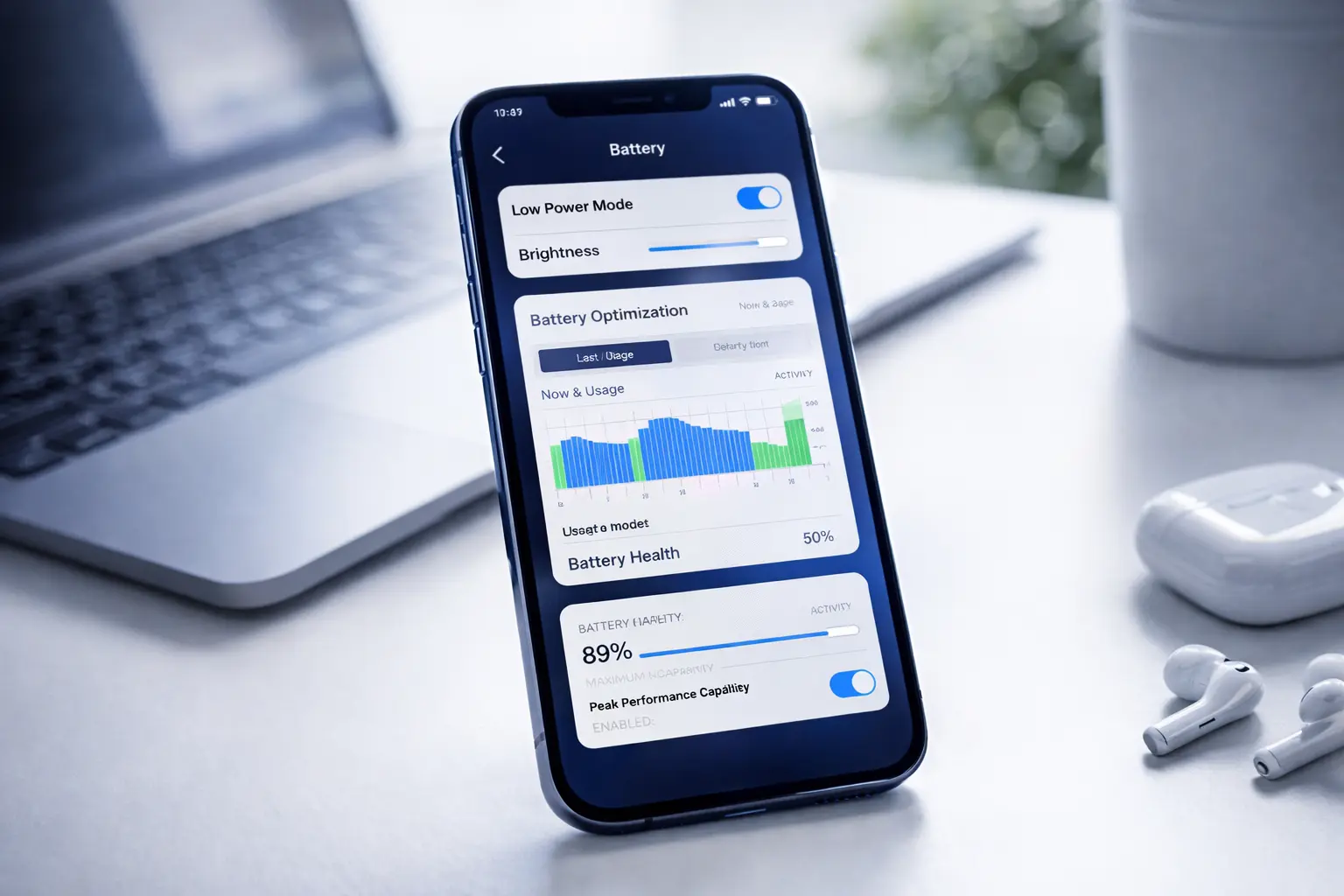

How to Extend Your Battery Life
Without Ruining Your Phone Experience
Battery life is one of the first things people notice when a phone starts feeling old, unreliable, or frustrating. But in many cases, the problem is not only the battery itself. It is the way the device is being used, the settings running in the background, the brightness level, the network behavior, the apps syncing too often, and the charging habits that quietly drain power faster than necessary. The good news is that you can often extend your battery life dramatically with practical adjustments that do not make your phone feel limited. You do not need to stop using your device. You simply need to use it more intelligently.
Direct Answer — Featured Snippet
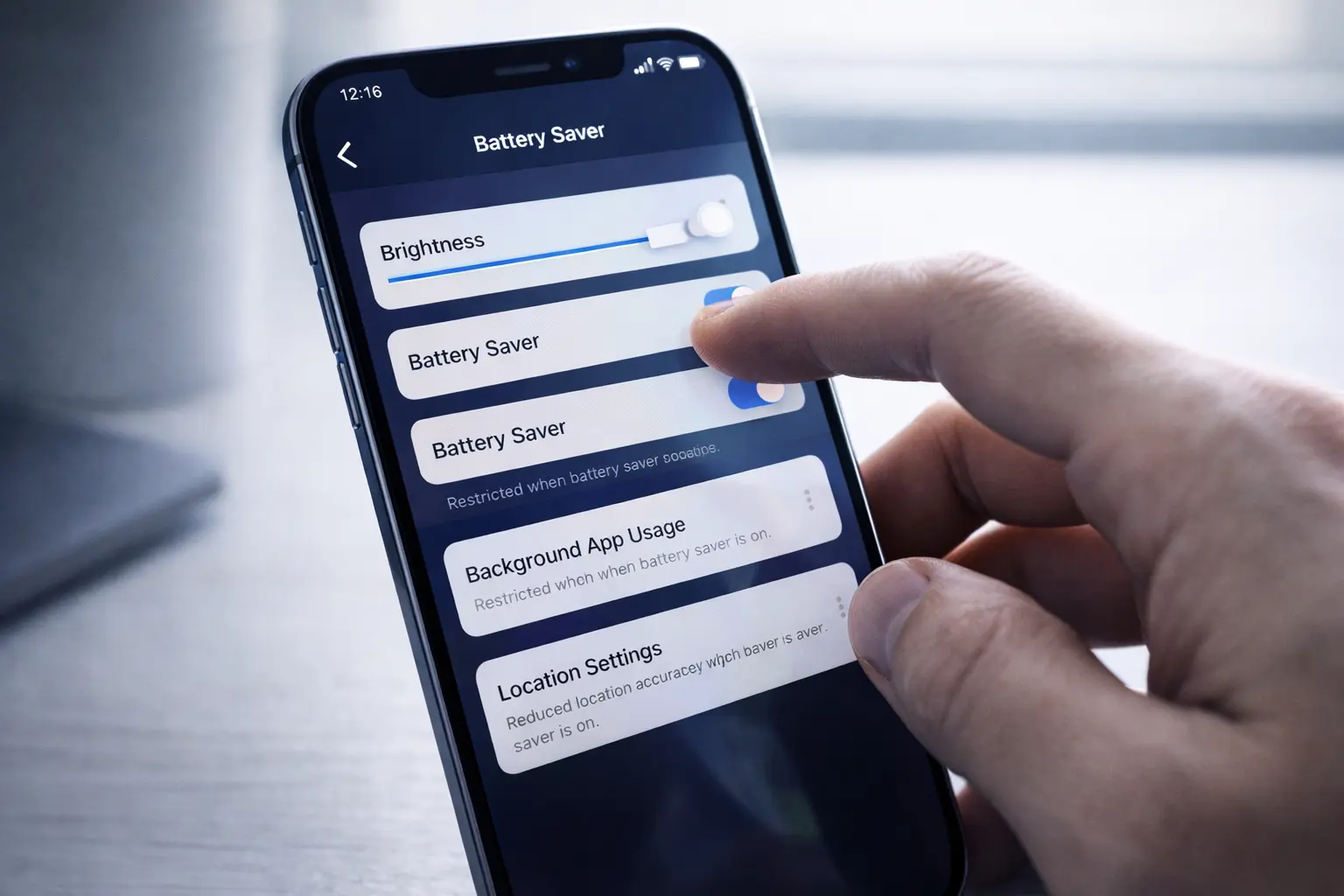
To extend your battery life, reduce screen brightness, shorten screen timeout, limit background app activity, disable unnecessary location access, use Wi-Fi instead of weak mobile data when possible, turn on battery saver mode when needed, remove power-hungry apps, keep your software updated, avoid extreme heat, and manage features like Bluetooth, hotspot, always-on display, and high refresh rate more carefully. The goal is not to cripple your phone. It is to stop silent battery drain happening in the background.
Why Battery Life Feels Worse Than It Should
Battery complaints are rarely only about numbers. They are about trust. When your phone battery drops too quickly, you stop trusting the device. You begin checking the percentage more often. You lower your screen use, carry a charger everywhere, avoid long outings without a power bank, and develop a low-level anxiety that your phone will die at the worst moment. A device that should feel convenient starts to feel needy.
The reason battery life feels so personal is simple: battery affects everything. It changes how long you can navigate, how long you can work, how long you can reply to messages, how long you can watch video, and how much freedom you have away from an outlet. People often think battery problems begin only when the battery becomes physically worn out, but that is only part of the story. In everyday use, battery drain is often caused by software behavior, display settings, connectivity patterns, and apps that demand more energy than users realize.
A modern smartphone is constantly doing things even when you are not touching it. It checks for emails, refreshes apps, updates widgets, syncs photos, measures location, searches for signal, downloads notifications, keeps the display ready, and maintains background system tasks. None of that sounds dramatic by itself. But battery loss is often death by a thousand small processes rather than one obvious problem.
That is why extending your battery life is not about finding one magic switch. It is about understanding where power goes and reducing waste without destroying convenience. Done properly, battery optimization feels invisible. You still use your phone naturally. It just lasts longer and behaves better.
Core Insight
The best battery-saving strategy is not extreme restriction. It is removing unnecessary battery drain while keeping the features that actually matter to your daily life.
What Really Drains a Phone Battery
Most people blame battery drain on “the battery,” but batteries do not drain themselves. Power is consumed by the hardware and software systems using that battery. Some of the biggest power consumers are obvious. The screen is a major one. Mobile data in poor signal conditions is another. Video, gaming, and navigation all demand more energy than casual messaging. But there are also hidden drains: apps requesting location repeatedly, background refresh running too often, automatic backups starting at bad times, widgets pulling data every few minutes, and push notifications waking the phone constantly.
There are also power drains created by habits rather than technology. Leaving brightness too high indoors, keeping dozens of apps installed that constantly sync, letting the phone overheat in sunlight, using live wallpapers, or staying connected to unstable networks for long periods all increase battery usage. Some users drain battery without realizing it because they assume that if the phone is in their pocket, it is doing almost nothing. In reality, a phone in your pocket may still be extremely busy.
Understanding this changes your mindset. Instead of asking, “Why is my battery bad?” you begin asking, “Which parts of my phone are spending energy, and which of those are worth it?” That question is much more useful because it leads to real action.
What This Guide Covers
- 1. Reduce Screen Power Consumption
- 2. Control Background Apps and Sync
- 3. Manage Wi-Fi, Mobile Data, and Signal Drain
- 4. Limit Location and Always-On Features
- 5. Use Battery Saver the Smart Way
- 6. Improve Charging and Heat Habits
- 7. Identify Power-Hungry Apps
- 8. Build a Battery-Friendly Daily Routine
- Quick Reference Table
- FAQ
1 — Reduce Screen Power Consumption First Because the Display Is Often the Biggest Drain
If you want one place to begin, begin with the screen. The display is often the single largest battery consumer in normal smartphone use. This makes sense when you think about it. It is the part of the phone that stays bright, active, animated, and visible while you use it. Large modern displays are beautiful, but beauty costs power.
The simplest improvement is reducing brightness. Many users keep brightness much higher than necessary, especially indoors. Automatic brightness can help, but it is not always perfect. Sometimes it stays brighter than needed, particularly in mixed lighting. Learning to nudge brightness down manually can save a surprising amount of power across a day.
Screen timeout matters too. If your display stays on for one or two minutes after each use, that wasted time adds up constantly. Shortening the timeout to something practical, such as 15 or 30 seconds, means the screen stops consuming energy when you are no longer looking at it. This is a small change, but it affects every single interaction.
Another important factor is refresh rate. Some phones support high refresh modes that make scrolling feel smoother, but they also use more energy. If battery life matters more to you than ultra-smooth animation, choosing a standard refresh rate can help. The same idea applies to always-on display. It looks stylish and convenient, but it still uses power over the course of a day. If you rarely benefit from glancing at the lock screen, turning it off is often worthwhile.
Dark mode can help in some cases, particularly on displays where darker pixels use less energy. Even when the savings are not dramatic, it may slightly reduce power use while also being easier on the eyes at night. More important than one single setting is the overall principle: your screen should work for you, not shine at full intensity for no reason.
These two changes are often the fastest path to noticeable battery improvement. They require no technical skill, no app installation, and no sacrifice in normal performance. They simply reduce wasted screen power.
Real use case: a phone used heavily for messaging, browsing, and social media lasts longer because the display is not overworking all day.
Practical display settings that usually help
- Use auto-brightness, but manually pull brightness down indoors when needed.
- Set screen timeout to a shorter but realistic value.
- Turn off always-on display if you do not rely on it.
- Consider standard refresh rate over high refresh mode when battery matters.
- Use dark mode, especially in the evening and for apps used often.
2 — Control Background Apps Because Battery Drain Often Happens When You Are Not Looking
Many users think battery drain comes from what they do on the phone. Just as often, it comes from what the phone keeps doing after they stop. Background activity is one of the most misunderstood causes of power loss. Apps refresh content, upload data, download updates, check messages, track movement, and sync with servers even when they are not open on the screen.
Some background activity is useful. You want messaging apps to notify you. You may want email to arrive promptly. You may want cloud photos backed up. But not every app deserves the same level of freedom. Shopping apps, occasional travel apps, old games, or rarely used tools often continue background processes even when they are not central to your day.
This is why reviewing app permissions and background refresh settings matters so much. Ask a simple question: does this app need to do things when I am not using it? If the answer is no, restrict it. That does not mean uninstalling everything. It means being intentional.
Widgets can also contribute to battery drain. A widget that constantly refreshes weather, news, stock updates, or social content wakes the phone regularly. A few well-chosen widgets are fine. A crowded home screen full of live information is less battery-friendly than it looks. Similarly, push-heavy apps that send endless alerts keep waking the phone and using both battery and attention.
One subtle but powerful shift is uninstalling apps you no longer use. Many people optimize settings while keeping dozens of unnecessary apps installed. Every extra app is another possible source of notifications, sync, background activity, tracking, and drain. Removing dead weight helps both performance and battery life.
Limiting background activity does not make your phone worse. It often makes your phone feel cleaner, faster, and calmer while also reducing unnecessary battery loss.
Real use case: social, shopping, and travel apps stop refreshing constantly in the background, so your battery drops more slowly during the day.
Good background battery habits
- Restrict background activity for apps you rarely use.
- Remove old apps you no longer need.
- Reduce the number of active widgets.
- Turn off unnecessary push notifications.
- Review which apps are syncing photos, files, messages, or location in the background.
3 — Manage Wi-Fi, Mobile Data, and Weak Signal Conditions Because Network Searching Uses More Power Than Most People Realize
One of the least obvious battery killers is poor signal. When a phone struggles to maintain a connection, it works harder. It searches, reconnects, boosts radio activity, and keeps trying to stay linked to the network. That effort costs battery. This is why battery often falls faster in elevators, underground locations, rural roads, big concrete buildings, or places with unstable mobile service.
In general, Wi-Fi is often more efficient than weak mobile data. If you are in a place with solid Wi-Fi, using it can reduce the effort your phone spends hunting for a mobile signal. On the other hand, if your Wi-Fi is unstable and constantly disconnecting, that can create its own drain. The key is using the more stable connection, not simply leaving every connection method active all the time.
Features like hotspot, Bluetooth scanning, AirDrop-style sharing, and constant device discovery also consume power. Again, this does not mean these features are bad. It means they should be active when needed and inactive when forgotten. Many users leave personal hotspot enabled or keep unnecessary wireless discovery features on long after they are done using them.
Travel days are especially hard on battery because phones constantly switch towers, search for signal, refresh maps, and handle navigation. If you know you will be in a bad-signal area and do not need live connectivity, practical measures like airplane mode in specific moments or downloading offline content in advance can make a real difference.
Battery drain is often worse in weak network conditions than during normal strong-signal use. Managing connectivity intelligently helps your battery far more than many people expect.
Real use case: using stable Wi-Fi at home and turning off unused hotspot or wireless discovery features prevents silent battery waste.
Network habits that extend battery life
- Use strong Wi-Fi when available instead of unstable mobile data.
- Turn off hotspot when you are done using it.
- Disable Bluetooth or nearby sharing if you do not need them for long periods.
- Download maps, music, or video in advance when traveling.
- In very weak signal areas, consider temporary airplane mode if you do not need connectivity.
4 — Limit Location, Motion, and Always-Running Features That Keep the Phone Busy All Day
Location services are useful, but they are also one of the easiest places for battery waste to hide. Not every app needs to know where you are all the time. In fact, very few apps truly need constant location access. Many apps request it because it helps them collect data, personalize content, or enable features you may not care about.
Reviewing location permissions is one of the smartest battery-saving tasks you can do. Navigation apps obviously need location while in use. Weather apps might need approximate location occasionally. But many shopping apps, camera filters, restaurant apps, or background services do not need constant access. Choosing “While Using the App” instead of “Always” can reduce drain significantly without hurting daily convenience.
Motion tracking, fitness sensors, background voice assistants, and wake-on-gesture features can also affect battery. Individually, each one may seem small. Together, they create a phone that never truly rests. That is often the hidden difference between a phone that comfortably lasts a day and one that feels tired by evening.
Live wallpapers, constant animations, and interactive effects also add small but real overhead. People often underestimate the power cost of aesthetic features because each one seems lightweight. But battery optimization is a game of accumulation. When you remove ten small drains, the improvement becomes large.
Constant location access is one of the most common forms of unnecessary background drain. Tightening permissions often improves both battery life and privacy at the same time.
Real use case: map apps keep working when needed, but casual apps stop checking location all day for no real reason.
5 — Use Battery Saver Mode the Smart Way Instead of Treating It as a Last-Minute Emergency Button
Many people wait until their battery is nearly dead before turning on battery saver mode. That works, but it misses the full benefit. Battery saver is not just an emergency measure. It is a power management tool that can be used strategically. When you know you are heading into a long day, a commute, travel, or a time away from outlets, enabling power-saving features earlier can stretch battery much more effectively.
Battery saver usually reduces background activity, lowers performance peaks, limits refresh behavior, and sometimes changes visual effects. These trade-offs are often barely noticeable during everyday use. In exchange, the phone becomes more conservative with energy. Many users are surprised to discover that their phone remains perfectly usable in battery saver mode for large parts of the day.
The smart approach is to make battery saver situational rather than emotional. Do not wait until 8 percent and panic. Use it when the context tells you power matters more than maximum performance. For example, you might not need full performance while commuting, reading, messaging, or attending meetings. In those cases, battery saver is helping you preserve battery for the moments when it really matters later.
Some phones allow automatic battery saver activation at a chosen percentage. This is useful because it removes guesswork. Instead of remembering to turn it on, you let the phone become more efficient at a threshold you choose. Automation is always better than relying on memory.
Waiting until the battery is almost empty limits the benefit. Turning battery saver on earlier in long or demanding days can help you keep reliable power much longer.
Real use case: activate battery saver before leaving home for a long day and reach the evening with enough charge for maps, calls, and messages.
6 — Improve Your Charging and Heat Habits Because Long-Term Battery Life Depends on More Than Daily Drain
Extending battery life means two related things. First, making the battery last longer during the day. Second, protecting the battery so it ages more slowly over months and years. This second part is where charging habits and temperature matter.
Heat is one of the worst enemies of battery longevity. A phone that regularly gets hot while charging, gaming, sitting in a car, or lying in direct sunlight will usually age faster than one kept cooler. Heat stresses the battery chemically and can reduce long-term capacity. That means even if your battery was once excellent, repeated overheating can make it feel worn earlier.
Charging habits matter too, though many myths circulate around them. You do not need to become obsessed with perfect percentages. What matters more is avoiding repeated extreme situations: frequent overheating, very cheap unsafe chargers, constant heavy use while fast charging, and leaving the phone in hot environments. Using good chargers and cables, keeping the phone ventilated, and not trapping heat under pillows or blankets during charging is common-sense battery care.
If you game heavily or watch long videos while charging, your phone may generate heat from both charging and processing at the same time. That combination can be rough on the battery. It is not catastrophic once in a while, but doing it constantly is not ideal. The same goes for dashboard charging under sunlight in a car. The phone may survive it, but the battery will not thank you over time.
Good battery care is not perfectionism. It is simply avoiding repeated stress. A cool, well-managed battery tends to stay healthier longer.
Many people focus only on daily battery percentage while ignoring battery health over time. Reducing heat and charging stress helps the battery keep more of its original capacity.
Real use case: a phone that is charged carefully and kept cooler stays reliable longer and does not lose endurance as quickly over the months.
Healthy charging habits that usually help
- Use quality chargers and cables.
- Keep the phone out of direct heat while charging.
- Avoid trapping heat under blankets, cushions, or soft fabric.
- Reduce heavy gaming or intense processing while charging.
- Remove thick cases temporarily if your phone gets unusually warm while charging.
7 — Identify Power-Hungry Apps Instead of Guessing
Battery optimization becomes much easier once you stop guessing and start checking. Both Android and iPhone provide battery usage information that shows which apps and activities are consuming the most power. This is one of the most underused diagnostic tools on a phone. People often complain in general terms, but the battery page frequently tells a very specific story.
Sometimes the culprit is obvious: video streaming, gaming, navigation, or camera use. But sometimes the battery page reveals surprising behavior. A social app may be using a disproportionate amount of background power. A photo backup service may be running too often. A messaging app may be waking the device constantly. A poorly optimized app update may suddenly appear as a top battery user.
This matters because different battery problems require different solutions. If the screen is the main drain, adjust display settings. If one app dominates background use, restrict or remove it. If navigation drained the battery on a travel day, that may be normal and not something to worry about. The battery page helps separate normal heavy use from abnormal waste.
When users skip this step, they often overcorrect in the wrong direction. They turn off useful features globally, when in reality one or two badly behaved apps were responsible for most of the problem. Good battery management is selective, not random.
The battery menu often exposes the truth quickly. Instead of assuming the battery is bad, check which apps, services, or system features are actually spending the energy.
Real use case: one app with abnormal background use is restricted or removed, and battery life improves more than ten random setting changes would have.
When an app may be part of the problem
- It appears near the top of battery usage even when you barely used it.
- It shows excessive background activity.
- It sends frequent notifications and wakes the phone often.
- It uses location, media, or network access more than expected.
- Battery behavior got worse shortly after installing or updating it.
8 — Build a Battery-Friendly Daily Routine Instead of Constantly Reacting to Low Power
The most effective battery strategy is not a set of emergency tricks. It is a routine. Phones behave best when your habits support the way batteries work. If every day begins with full brightness, unstable data, multiple widgets, dozens of notifications, constant Bluetooth scanning, and heavy background activity, then every day becomes a race against battery drain. That race feels normal only because many people have gotten used to it.
A battery-friendly routine starts with setup. Keep only the apps you actually use. Limit unnecessary permissions. Use sensible display settings. Keep a stable network when possible. Enable power-saving options when context suggests you will need endurance. Charge with decent equipment. Avoid heat. Review battery stats occasionally. These are not dramatic habits, but together they produce a phone that feels more dependable.
Another part of the routine is planning around your real use. If you know you have a long travel day, prepare differently. Download content in advance, turn on battery saver earlier, reduce screen brightness, and avoid leaving apps running pointlessly. If you know you will be using maps or camera heavily, bring a charger or power bank and avoid wasting power earlier in the day. Good battery management is really good energy budgeting.
There is also a psychological benefit here. When your battery routinely lasts as expected, you stop thinking about it. That may be the clearest sign of success. The goal is not to become obsessed with battery percentage. The goal is to make battery life boring again because it is no longer causing stress.
A realistic battery-friendly routine
- Start the day with only the connections and features you actually need.
- Keep brightness reasonable rather than leaving it aggressively high.
- Use battery saver earlier on long days instead of waiting for panic mode.
- Restrict battery-hungry apps that do not deserve constant background access.
- Review battery usage once in a while to catch new problems early.
- Avoid unnecessary heat whenever possible.
- Think in terms of battery budget, not battery fear.
Quick Reference Table: What Helps Battery Life Most
| Action | Why It Helps | Impact Level |
|---|---|---|
| Lower screen brightness | Reduces one of the biggest daily power drains | High |
| Shorten screen timeout | Stops the display from staying on unnecessarily | Medium to High |
| Restrict background app activity | Prevents silent battery drain while phone is idle | High |
| Review location permissions | Stops apps from constantly requesting location | Medium to High |
| Use stable Wi-Fi when possible | Can reduce power wasted on weak signal searching | Medium |
| Disable hotspot and unused wireless features | Removes unnecessary radio activity | Medium |
| Use battery saver strategically | Limits waste before battery becomes critical | High |
| Avoid overheating | Protects both daily efficiency and long-term battery health | High |
| Check battery usage stats | Helps identify the real source of drain | High |
| Remove unnecessary apps | Reduces background activity, sync, and notification load | Medium to High |
What Not to Do If You Want Better Battery Life
Battery advice online is often full of extremes. Some people recommend turning off almost every feature and making the phone unpleasant to use. Others ignore battery care completely and assume nothing matters. The truth is in the middle. A useful phone should remain useful. Saving battery by destroying the user experience is not a real solution.
Avoid random app killers, overly aggressive cleaning tools, and miracle battery booster apps promising impossible gains. In many cases, those apps add their own background activity and clutter while solving little. Also avoid obsessively changing settings every hour. Constant micromanagement is not sustainable. The best battery improvements are stable habits and smart configuration, not endless tinkering.
Another bad approach is ignoring obvious heat problems or poor battery behavior for too long. If the battery suddenly worsens drastically, or the phone becomes unusually hot, or one app starts consuming absurd amounts of power, treat that as a signal worth investigating. Battery management should be calm and practical, not careless.
Practical Takeaways You Can Apply Today
- Lower your screen brightness before doing anything else.
- Set a shorter screen timeout so the display stops wasting power.
- Check which apps use the most battery before guessing at the cause.
- Restrict background activity for apps that do not need constant updates.
- Review location permissions and remove “Always” access where unnecessary.
- Use stable Wi-Fi instead of forcing the phone through weak mobile signal when possible.
- Turn off hotspot, always-on display, or high refresh rate if you do not truly need them.
- Use battery saver proactively on long days, not only when the battery is nearly dead.
- Avoid heat during charging and heavy use.
- Build battery-friendly habits that feel natural rather than restrictive.
Frequently Asked Questions
Does lowering brightness really make a big difference?
Should I always keep battery saver mode on?
Do background apps really drain battery that much?
Is Wi-Fi better for battery than mobile data?
Does heat really damage battery health?
Should I close all my apps manually to save battery?
What is the fastest battery improvement I can make right now?
Why does my battery drain faster when I am traveling?
Internal Linking Opportunities for ByteFix Lab
These three articles connect naturally with this battery guide and fit perfectly inside your site structure:
A Deeper Truth: Battery Life Is Really About Friction, Waste, and Trust
People often talk about battery life as if it were a simple hardware issue. But daily battery life is really a reflection of how well your phone, your apps, your settings, and your habits are working together. A phone that burns power carelessly does not just run out of battery. It creates friction. It asks for attention. It interrupts your day. It turns an invisible tool into a visible problem.
That is why the best battery optimization is not obsession. It is alignment. Your screen should not be brighter than your needs. Your apps should not be more active than your priorities. Your phone should not be spending energy on things you do not value. Once you understand that, battery saving becomes less about sacrifice and more about clarity.
A well-optimized phone still feels modern, smooth, and useful. It still does the things you care about. The difference is that it wastes less. And when a device wastes less, it lasts longer, feels calmer, and becomes more trustworthy again.
In the end, extending battery life is not really about forcing your phone to do less.
It is about teaching your phone to spend its energy on the things that matter most.